Education for Every

Showing posts with label PAN TAX. Show all posts

INCOME TAX EXCEL FILE

  INCOME TAX  EXCEL FILE 


INCOME TAX CALCULATION 2020-2021, EXCEL FILE 


"Whatsapp"ગ્રુપ મા જોડાવવા

During the financial year 2020-21, the employees / officers who are eligible for income tax, have to submit the details of their income as well as savings / investment in the accompanying form. This form along with their PAN number (Correct) is dated.  By 20-11-2050, it is stated to send the relevant cash-1 or cash-2 branch of the department in such a way that it can be found accurately.  


The following two options are given for calculation of income tax for the year assessment year 2021 (Fiscal Year 2020-21). 

INCOME TAX  EXCEL FILE 

 Option - “A” - (New Option) 


Option - “B” - (Old Option)


અહીં 60 વર્ષ નીચે માટે અને બચત ને 150000 ને નોર્મલ લઈ ગણતરી કરેલ છે. નવા અથવા જુના સ્લેબ મા કયો ફાયદા કારક છે. તમે નીચે ઓફિશિયલ લિંક પર થી તમારી જાતે ગણતરી કરી શકશો.... જો તમારે હોમ લૉન જેવી બચત હોય તો જુના સ્લેબ મુજબ ફાયદો વધુ....

5 લાખ આવક માટે


6 લાખ આવક માટે


7 લાખ આવક માટે

8 લાખ આવક માટે
9લાખ આવક માટે

10 લાખ આવક માટે


> with  If the sample self-assessment statement is not received by the said date, after deducting their income, assuming that they have not made any savings, deductible income tax will be deducted on a monthly basis for the period from December 2020 to February 2021. 

 >Employees / officers will have to invest the savings as shown in the self-assessment statement during the current financial year.  If they fail to do so, they will have a personal responsibility.

INCOME TAX  EXCEL FILE 

મોબાઈલ મા પાનકાર્ડ બનાવો આસાન રીત


> If additional income tax has to be deducted by the employee / officer due to change in savings, it will be deducted from the salary bill of the concerned employee officer for the month of February 2021.  


ઈકમટેક્સ મા 10E  મુજબ રિબેટ કેવી રીતે લેવું. ફોર્મ અને excel ફાઈલ


3.  Direct Recruitment Class-III and Class-III employees who are on temporary duty at the Establishment of the Minister, who have Income Tax PAN as well as those who file returns regularly, as well as those whose total annual income is Rs. 2,50,000 / - or more  Employees who have Form no.  In order to get 12, they have to send their self-assessment statement to the cash-1 / cash-2 branch within the stipulated time limit.  Employees whose Self-Assessment statement is not found here, Form no.  - 12 will not be entitled to receive.  


INSTANT PAN CARD IN ONE MINUTE  10 મિનિટ


 It has also come to the notice of the department that some employees / officers say that they will save / invest, but in fact such investment is not made by them, which is a very serious matter.  Due to non-deduction of income tax deductible for this reason, the withdrawal and distribution officer of the department is responsible, but at the same time the concerned officers / employees are also indirectly responsible.  


હોમ  લોન અને બીજા બાદ થવા પાત્ર બચત વિશે જાણો


In order to avoid the above circumstances and not to face the causal notice of the Income Tax Department, the employees / officers who have to submit their proof of savings before the withdrawal and distribution officer of the department by 15-9-2021, otherwise they have not saved or invested.  Assuming that, the deductible income tax will be deducted from the February 2011 salary. 


ઇનકામ ટેક્સ માટે વિવિધ બચત વિશે જાણો

મોબાઇલ મા e pan card ડાઉનલોડ કરો


 Employees / Officers who have Total Gross Income of 4,50,000 / - or more (* 40,000 / - Standard Deduction du Chapter IV - A of Income Tax Act - 1961 excluding sulo suld)  Must be sent to the branch.  In addition, employees / officers who have not obtained Permanent Account Number (PAN) will have to obtain PAN immediately and submit the proof in writing to the concerned cash branch.  In addition, the employees / officers who have obtained PAN should immediately submit a xerox copy of their PAN CARD to the concerned cash branch, otherwise they will not be given Form No. 16

INCOME TAX  EXCEL FILE 

"Whatsapp"ગ્રુપ મા જોડાવવા


Year 2022-23


Income Tax Excel File:- CLICK HERE

EXCEL FILE – CLICK HERE

EXCEL FILE – CLICK HERE

Advance Tax Calculation 2023-24 File excel Download 


Advance Income Tax Calculation 2022-23 Excel File Download >


INCOME TAX CALCULATION 2021-2022 EXCEL FILE FOR UR TAX COUNT IN FAST.


Income Tax 2022-23 માટે સંપૂર્ણ માહિતી ગુજરાતી મા PDF ફાઈલ ડાઉનલોડ કરો.  (મોહનલાલ કારિયા દ્વારા નિર્મિત)>


👉ઇન્કમટેકસમાંથી એરીયર્સ બાદ મેળવવાની ગણતરી કેવી રીતે કરશો?

👉10-E-કેલ્કયુલેટર સોફટવેરનો ઉપયોગ કેવી રીતે કરશો?

👇👇👇👇👇👇👇

ચાલો જોડાઈએ માઈક્રોસોફટ ટીમના ઓનલાઇન માધ્યમથી:- અહીં ક્લિક કરો

ફકત સરકારી પ્રાથમિક શાળાના શિક્ષકો માટે જ


-_~-_~-_~-_~-_~-_~-_~-_~-_~-_~-_~-_~-_~-_~-_~

વર્ષ 2021-2022 માટે excel ફાઈલ ઓટોમેટિક ગણતરી

Excel File

PDF File


ફાઈલ માત્ર કોમ્પ્યુટર મા ઓપન કરવી ( એક વ્યક્તિ માટે ફાઈલ)

ઓટોમેટિક ગણતરી માટેની excek ફાઈલ 


IMPORTANT LINK:-👇

ઇન્કમટેક્ષ આકારણી ૫ત્રક : 2021-22 માટે

👉  એક જ ફાઈલમાં 100 કર્મચારીની ગણતરી કરી શકશો પણ જેને વર્ષમાં વચ્ચે ઉચ્ચતર મળેલ હોય તેની ગણતરી અલગ ફાઈલમાં કરવી

👉  નવા અને જૂના સ્લેબમાં આકારણી ૫ત્રક, ૫ગાર સ્લી૫, ફોર્મ નંબર : 16 એક જ ફાઇલમાં

👉  જી.૫ી.એફ., સી.૫ી.એફ. અને વિઘાસહાયક માટે આકારણી ૫ત્રક એક જ ફાઇલમાં

👉  ફકત માર્ચ 2021 નો ૫ગાર ભરો અને આખા વર્ષનું આકારણી ૫ત્રક તૈયાર

Thanks to Maker:- Jagdish Patel Sir

INCOME TAX 2021-22 COUNTING FILE EXCEL CLICK HERE >


ઇન્કમટેક્ષ આકારણી ૫ત્રક : 2021-22 માટે

👉  નવા અને જૂના સ્લેબમાં આકારણી ૫ત્રક, ૫ગાર સ્લી૫, ફોર્મ નંબર : 16 એક જ ફાઇલમાં

👉  જી.૫ી.એફ., સી.૫ી.એફ. અને વિઘાસહાયક માટે આકારણી ૫ત્રક એક જ ફાઇલમાં

👉  ફકત માર્ચ 2021 નો ૫ગાર ભરો અને આખા વર્ષનું આકારણી ૫ત્રક તૈયાર

👉  વર્ષમાં વચ્ચે ઉ.૫.ઘો.ને કારણે બેેેેઝિક ૫ગાર બદલાય તો પાંચ વખત ફેરફાર કરી શકશો.

👉  વર્ષમાં ક૫ાતમાં ૫ણ ૫ાંચ વખત ફેરફાર કરી શકશો

👉 નવેમ્બર 2021 નું ૫ગાર બીલ બન્યા ૫હેલા ચેક કરી લો જેથી ઇન્કમટેક્ષ ક૫ાતમાં ફેરફાર કરી શકાય

Thanks to Maker:- Jagdish Patel Sir.

 INCOME TAX 2021-22 COUNTING FILE EXCEL CLICK HERE >


INCOME TAX CALCULATION 2020-2021, EXCEL FILE FOR UR TAX COUNT IN FAST.

IMPORTANT LINK:-👇


TAX CALCUTION AY 2020-21 WITH 10E FORM  


OFFICIALY INCOME TAX CALCULATION

ADVANCE TAX INCOME TAX COUNT EXCEL FILE 2020-2021 DOWNLIAD CLICK HERE

INCOME TAX COUNT 2020-21 EXCEL FILE

INCOME TAX PATRAK PDF

INCOME TAX COUNT EXCEL FILE 2020-21

Tax Pdf file


Download Excel file for advance tax:- Click Here

Download   Excel file ( Shruti font)

DOWNLOAD EXCEL FILE 2

Download PDF file 

Pdf file 2


RELATED POST:-

INCOME TAX DEDUCATION NEW RULS AND SLAB IN GUJARAT


Important:-For better result always use google cromeNote:-Please Always Check and Conform Above Details with The Official Website and Advertisement / Notification.
income tax


1. Overview


The pre-filling and filing of ITR-1 service is available to registered users on the e-Filing portal. This service enables individual taxpayers to file ITR-1 online through the e-Filing portal. This user manual covers filing of ITR-1 through online mode.

2. Prerequisites for availing this service
 

General

  • Registered user on the e-Filing portal with valid user ID and password
  • Status of PAN is active

Others

  • Link PAN and Aadhaar
  • Pre-validate at least one bank account and nominate it for refund (recommended)
  • Valid mobile number linked with Aadhaar / e-Filing portal / your bank / NSDL / CDSL (for e-Verification)
  • Download the offline utility or avail a third-party software (If using offline mode)

3. Form at a Glance


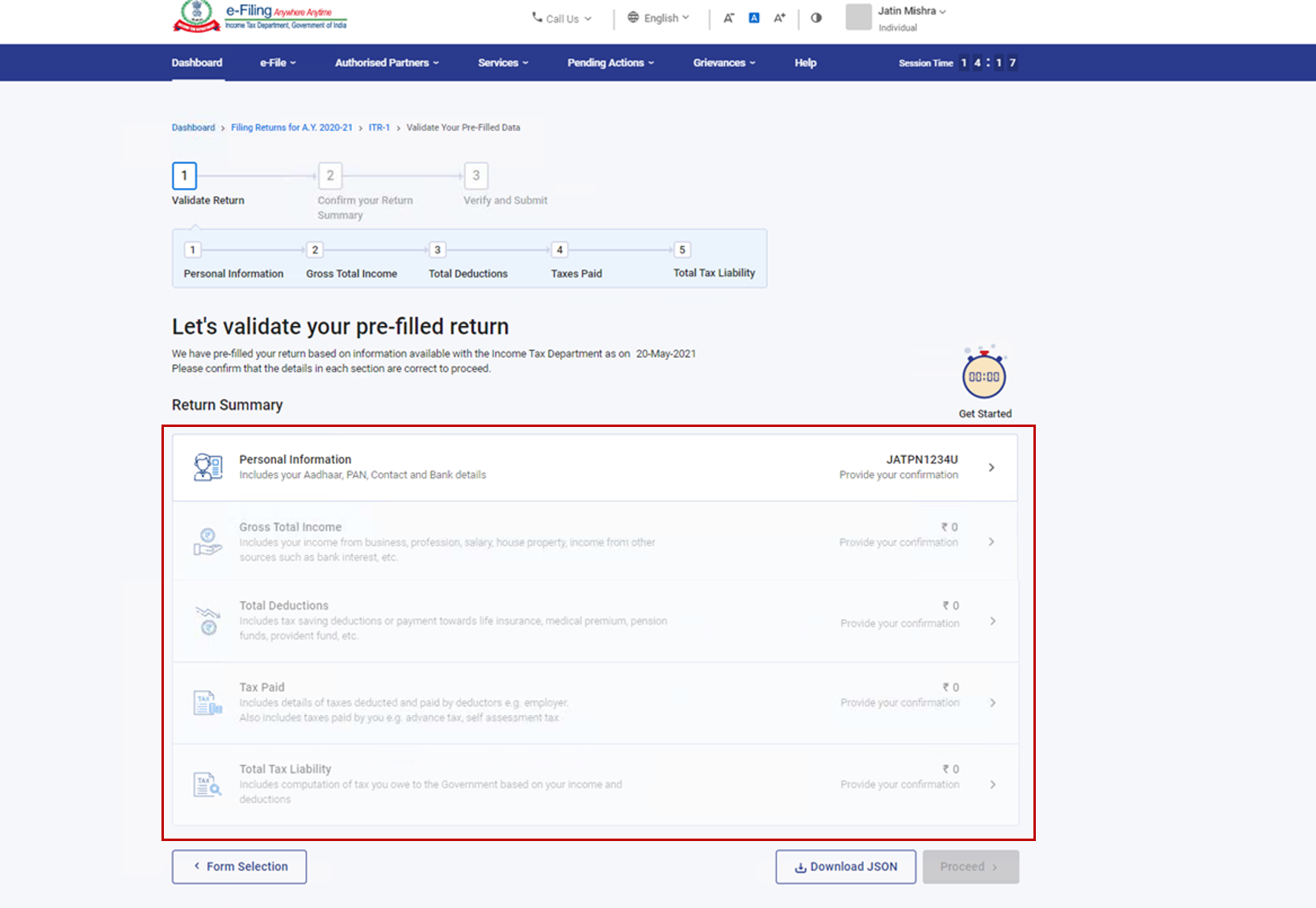
ITR-1 has five sections that you need to fill before submitting it and one summary section where you are required to review your tax computation. The sections are as follows:

  1. Personal Information
  2. Gross Total Income
  3. Total Deductions
  4. Tax Paid
  5. Total Tax Liability

Here is a quick tour of the various sections of ITR-1:


3.1 Personal Information

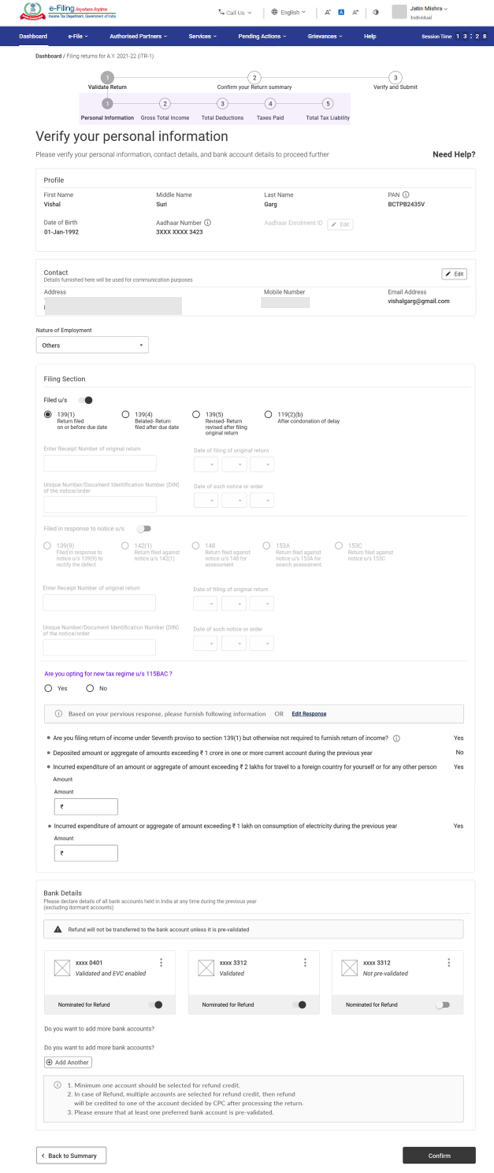
In the Personal Information section of the ITR, you need to verify the pre-filled data which is auto-filled from your e-Filing profile. You will not be able to edit some of your personal data directly in the form. However, you can make the necessary changes by going to your e-Filing profile. You can edit your contact details, filing type details and bank details in the form. 


3.2 Gross Total Income

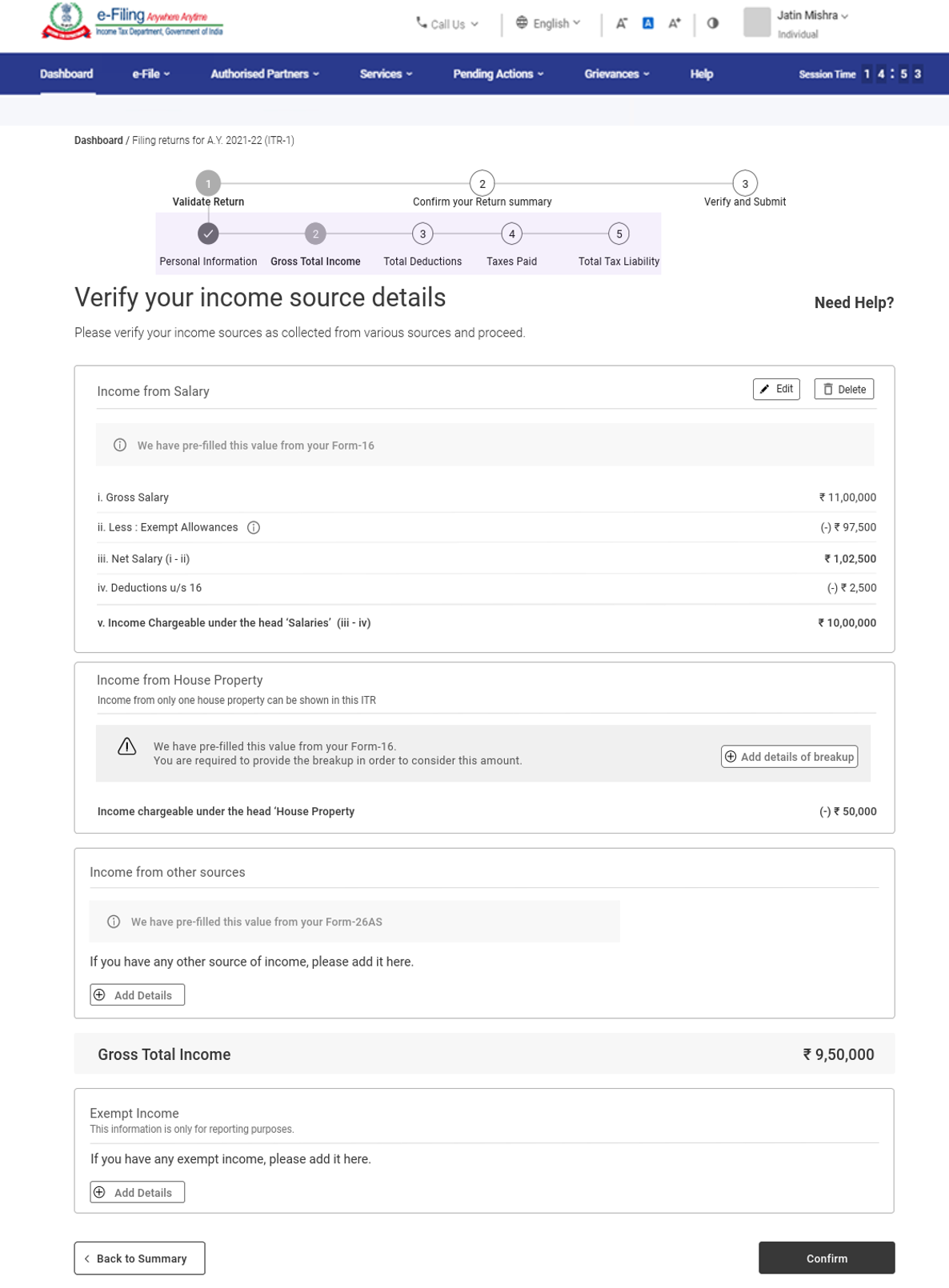
In the Gross Total Income section, you need to review the pre-filled information and verify your income source details from salary / pension, house property, and other sources (such as interest income, family pension, etc.).You will also be required to enter the remaining / additional details including your exempt income, if any. 


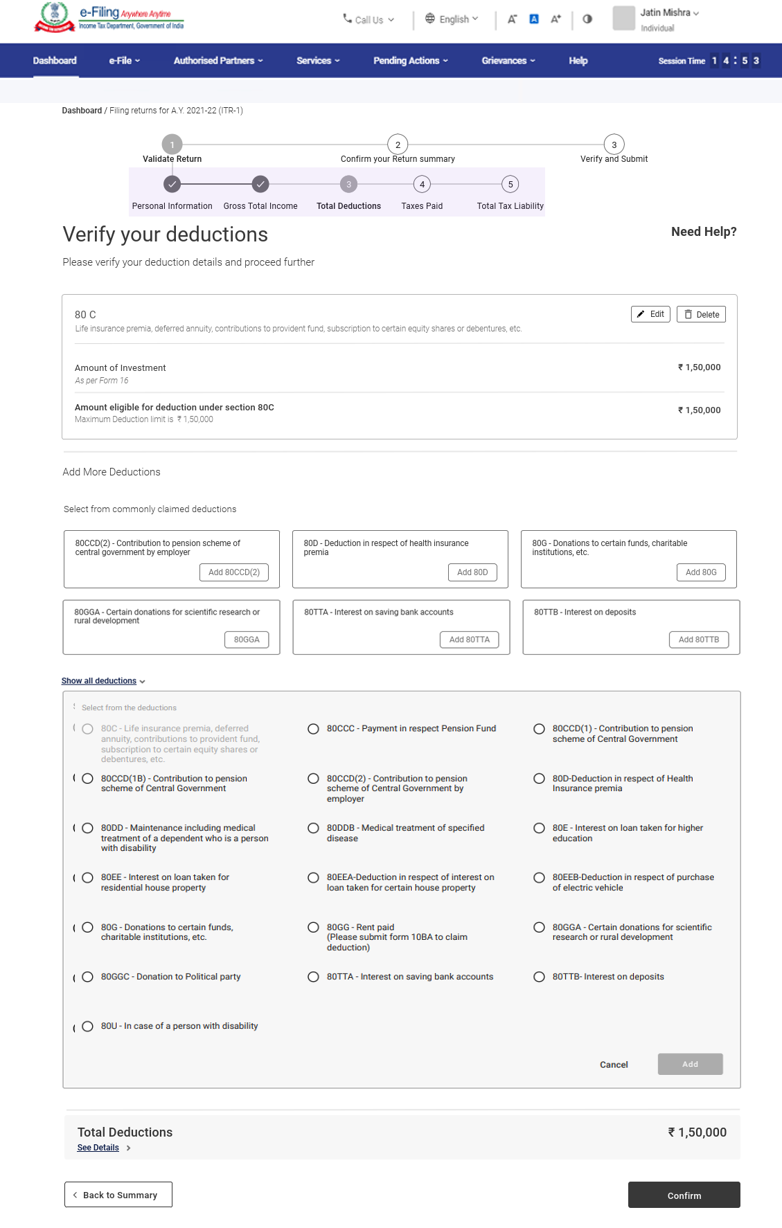
3.3 Total Deductions

In the Total Deductions section, you need to add and verify any deductions you wish to claim under Chapter VI-A of the Income Tax Act.


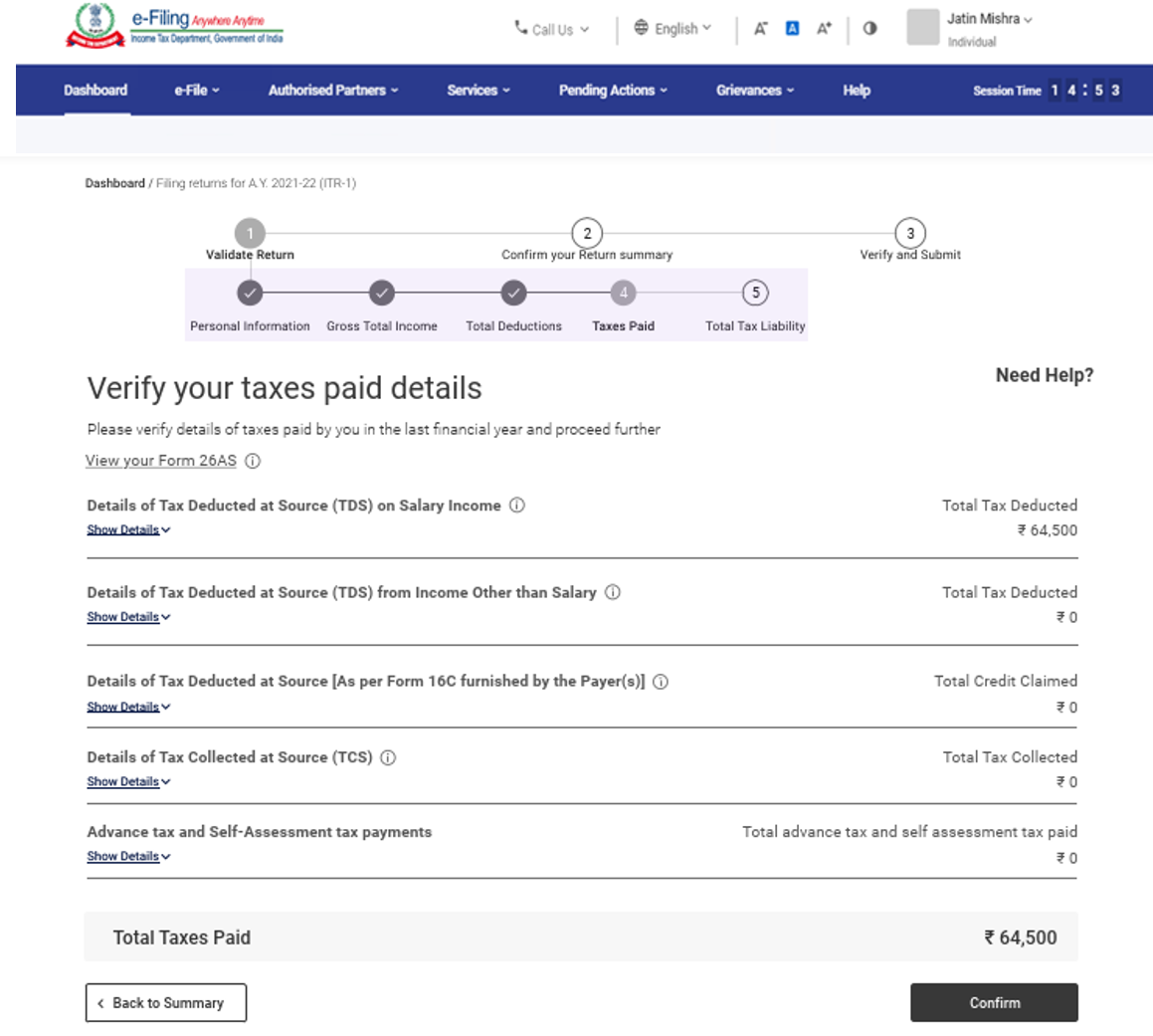
3.4 Tax Paid

In the Tax Paid section, you need to verify taxes paid by you in the previous year. Tax details include TDS from Salary / Other than Salary as furnished by Payer, TCS, Advance Tax and Self-Assessment Tax. 


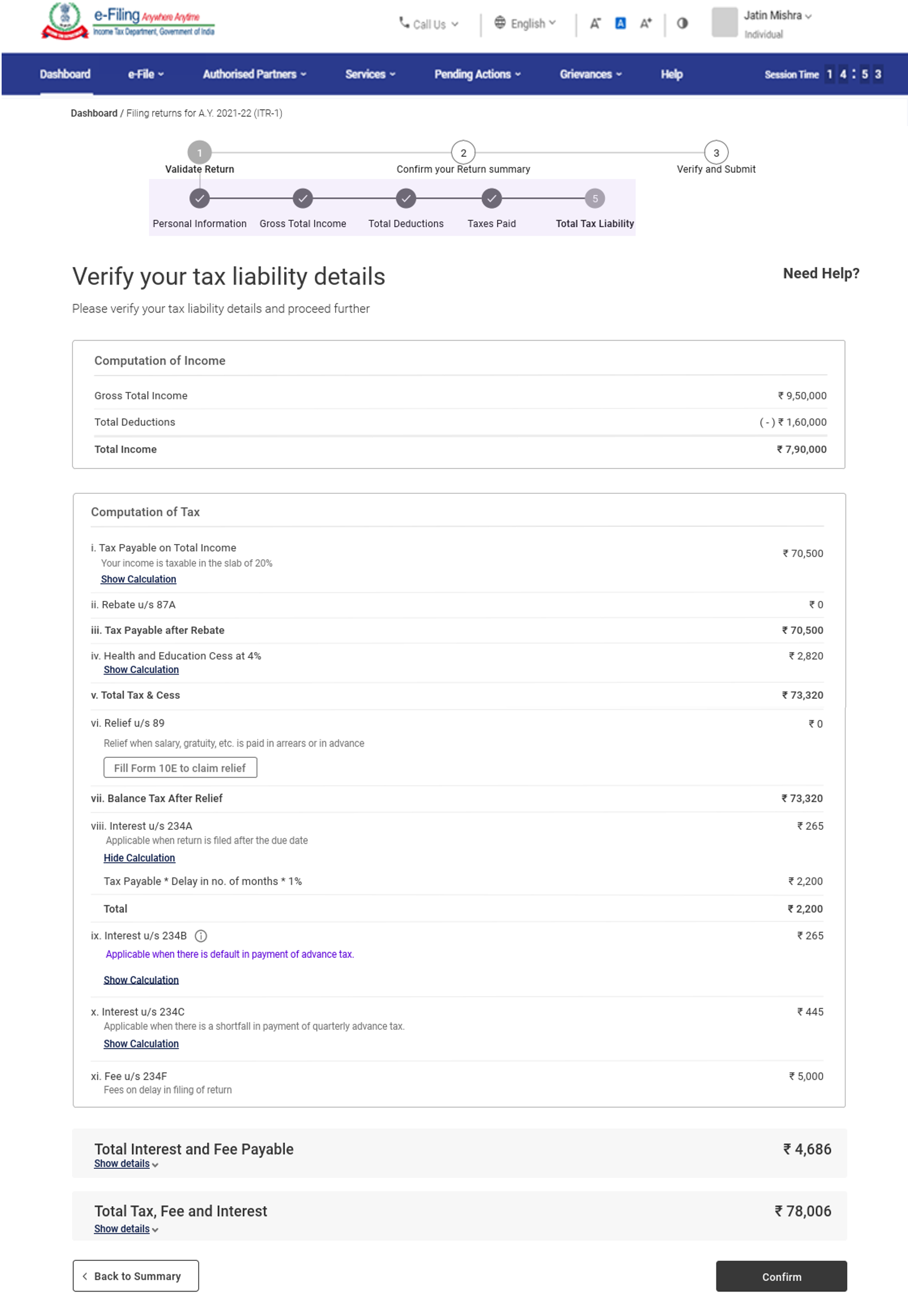
3.5 Total Tax Liability

In the Total Tax Liability section, you need to review tax liability computed as per the sections filled previously.


Note: For more details, refer to the instructions to file ITR issued by CBDT for AY 2021-22.

4. How to Access and Submit ITR - 1

You can file and submit your ITR through the following methods:

  • Online Mode – through e-Filing portal 
  • Offline Mode – through Offline Utility 

You can refer to the Offline Utility (for ITRs) user manual to learn more.


Follow the steps below to file and submit the ITR through online mode: 

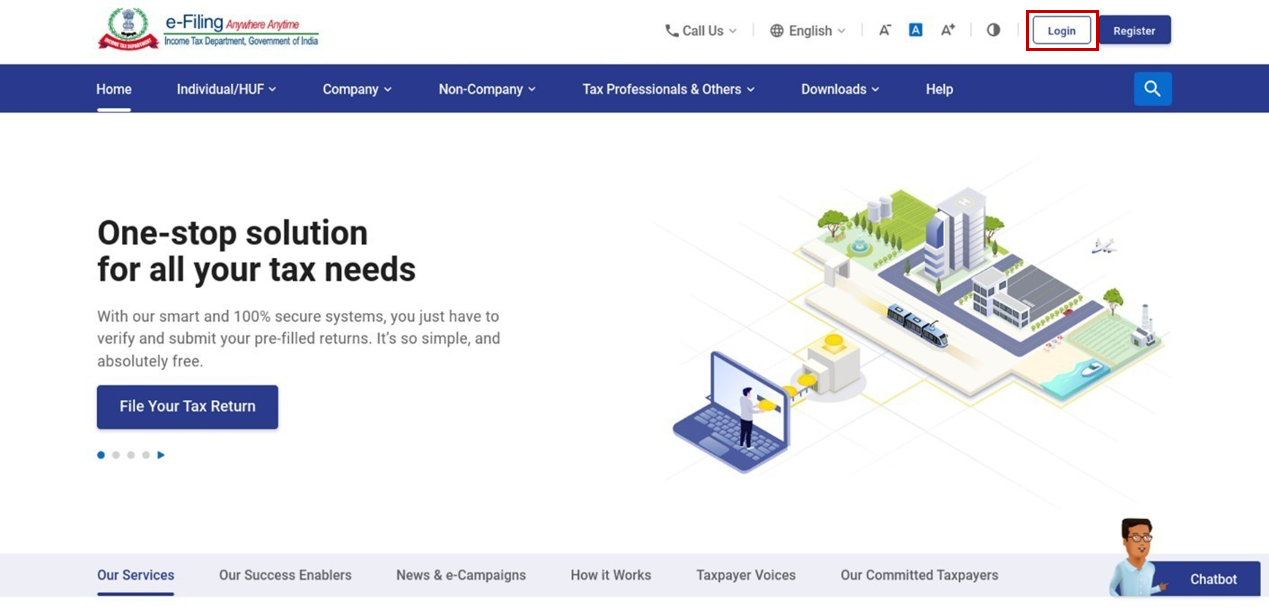
Step 1: Log in to the e-Filing portal using your user ID and password.


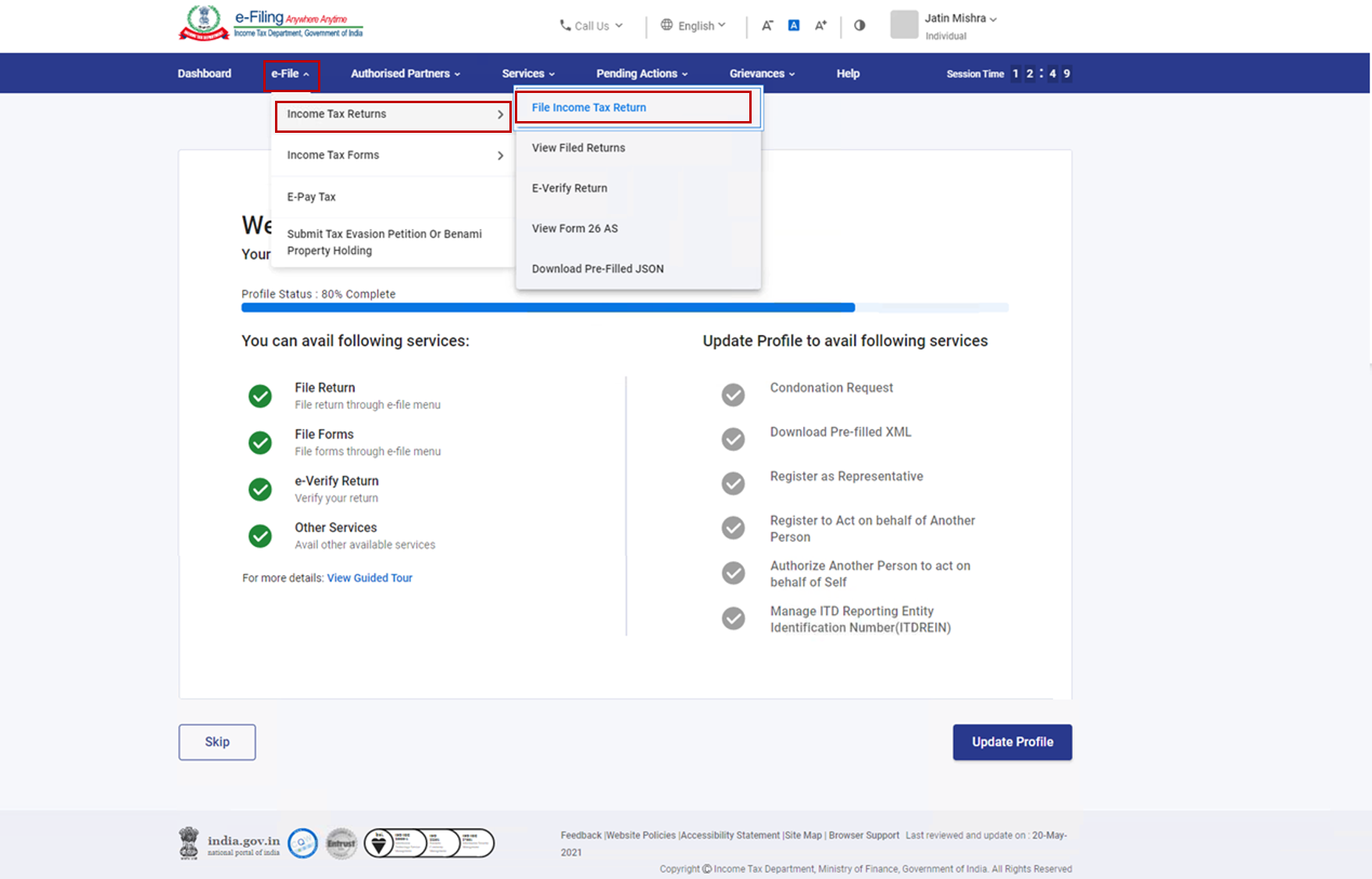
Step 2: On your Dashboard, click e-File > Income Tax Returns > File Income Tax Return.


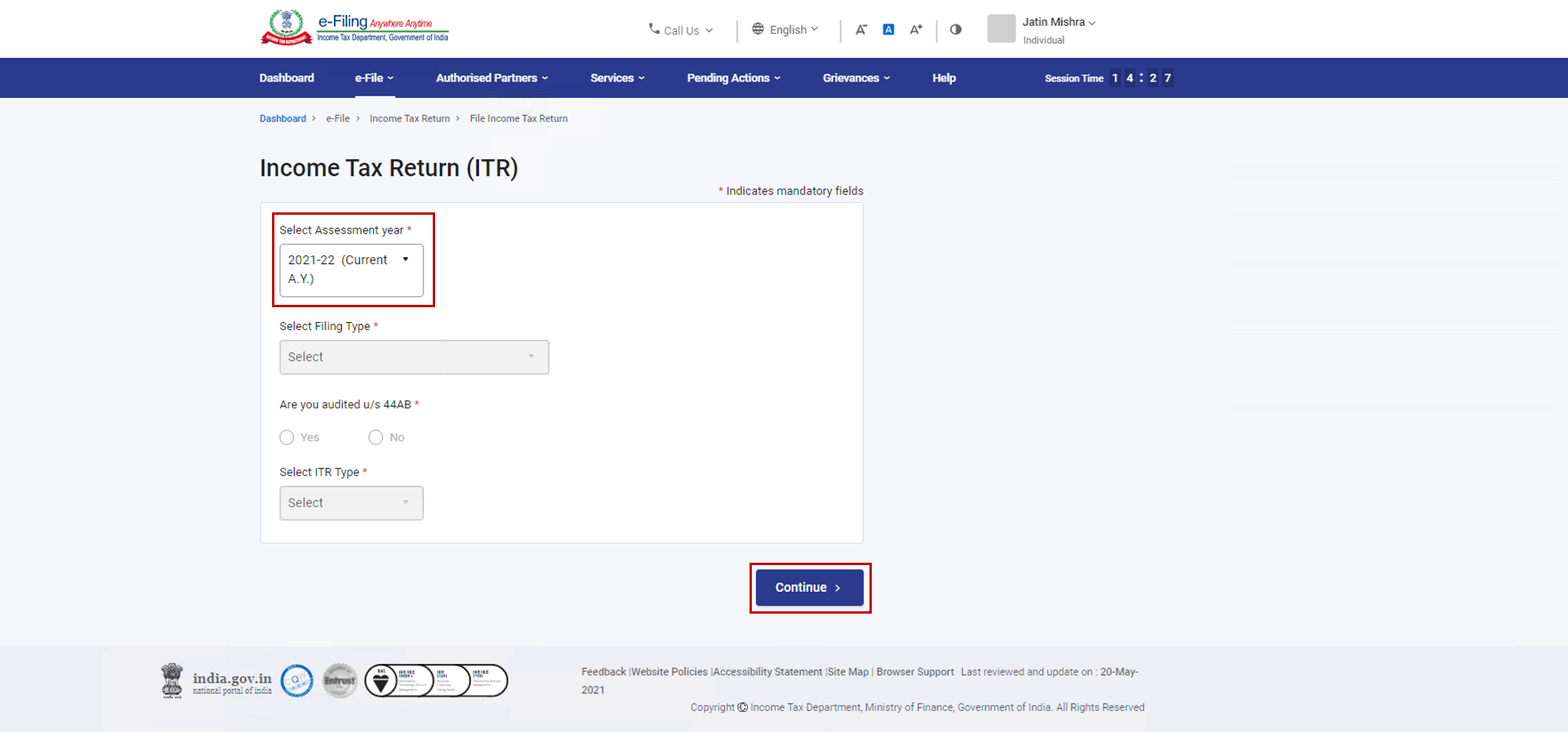
Step 3: Select Assessment Year as 2021 – 22 and click Continue.


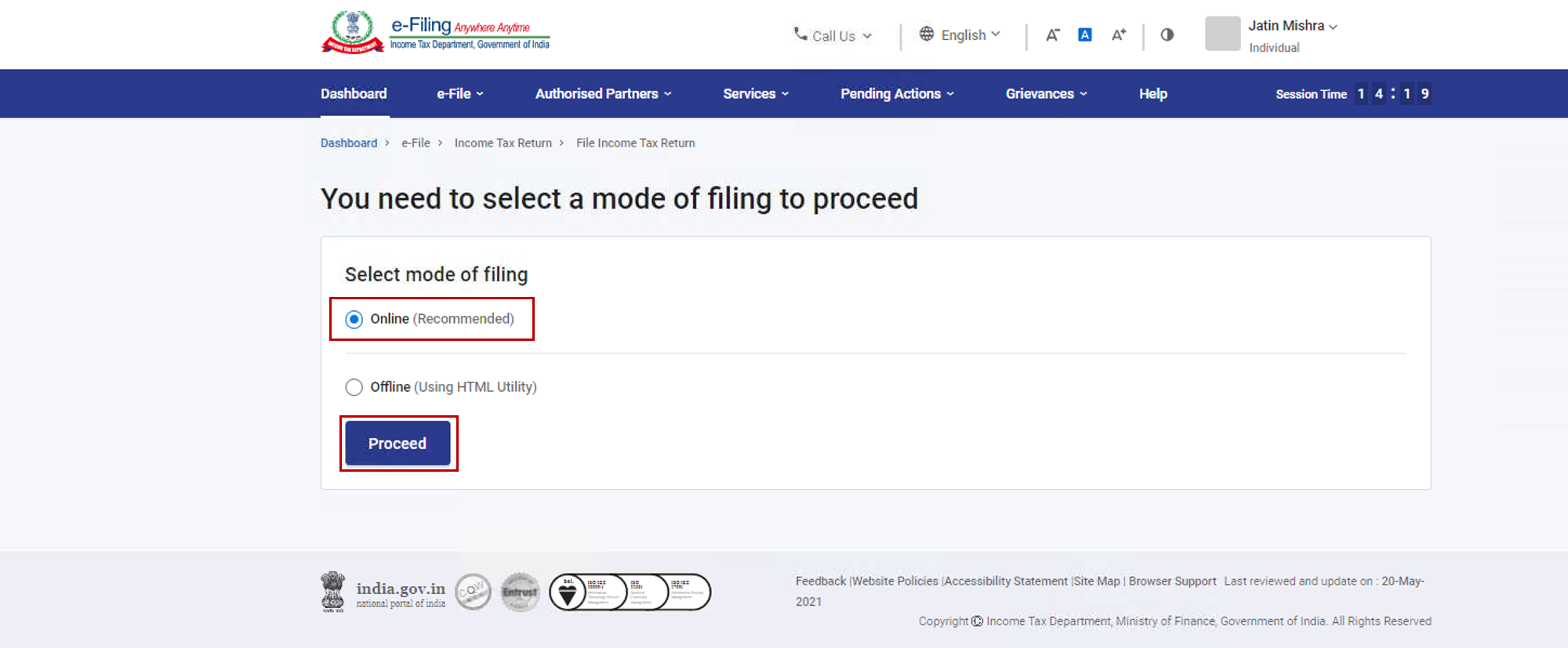
Step 4: Select Mode of Filing as Online and click Proceed.


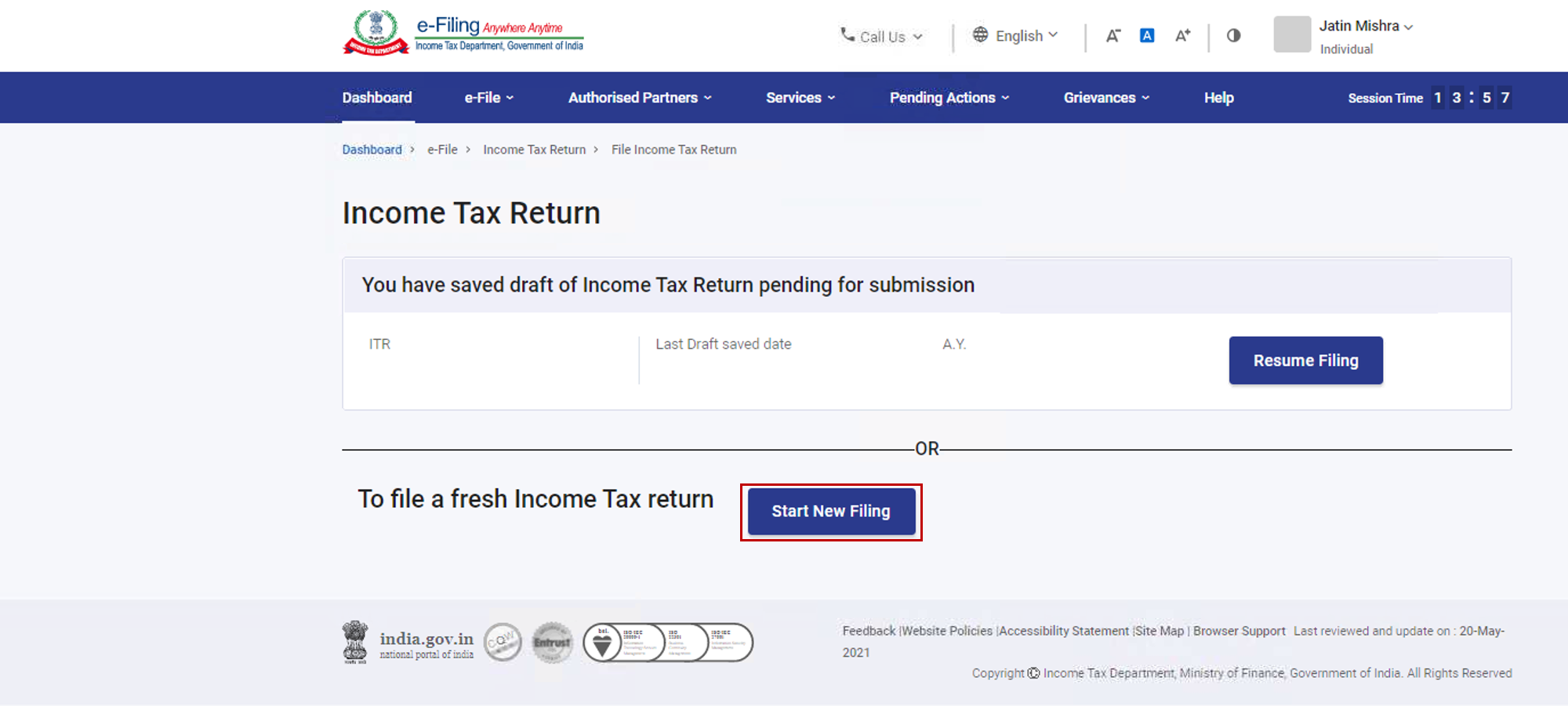
Note: In case you have already filled the Income Tax Return and it is pending for submission, click Resume Filing. In case you wish to discard the saved return and start preparing the return afresh click Start New Filing.


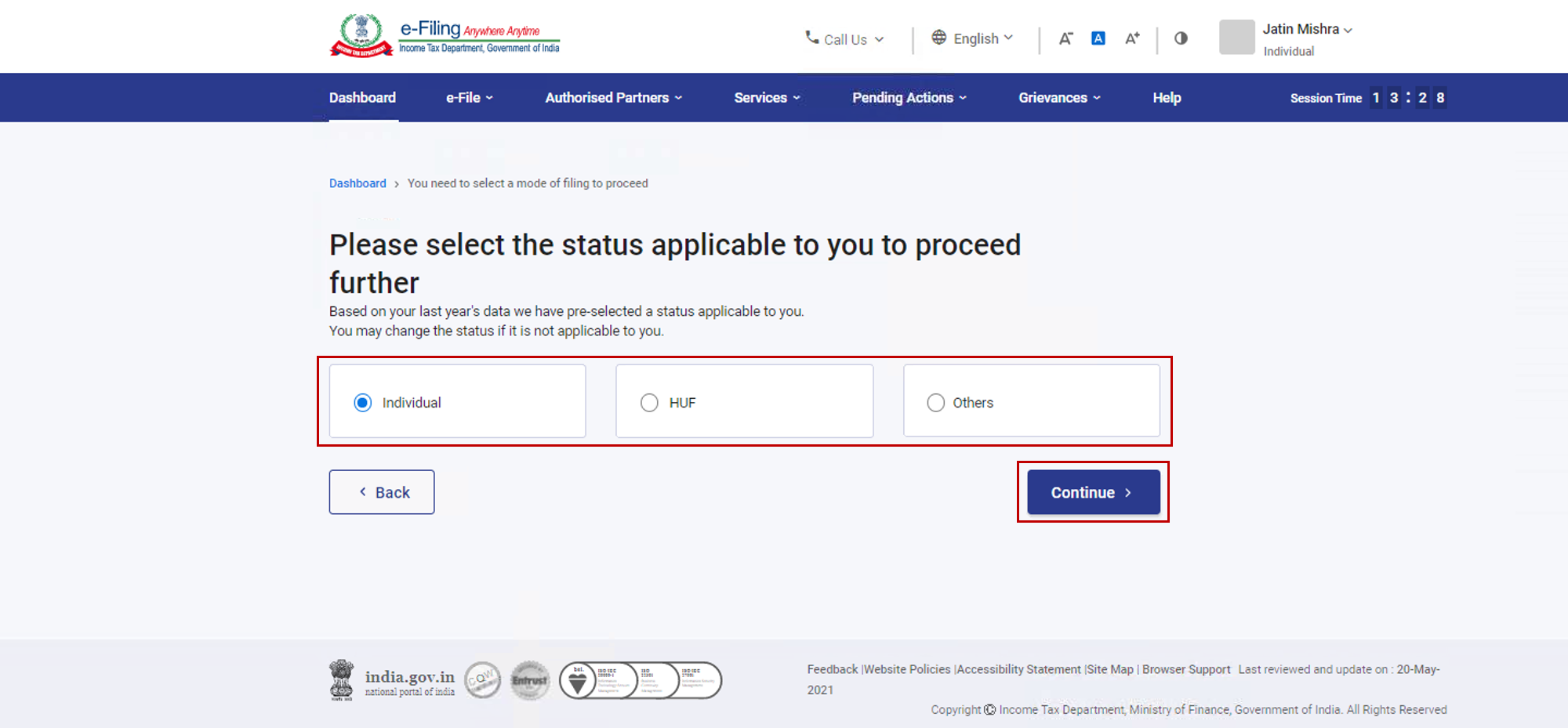
Step 5: Select Status as applicable to you and click Continue to proceed further.


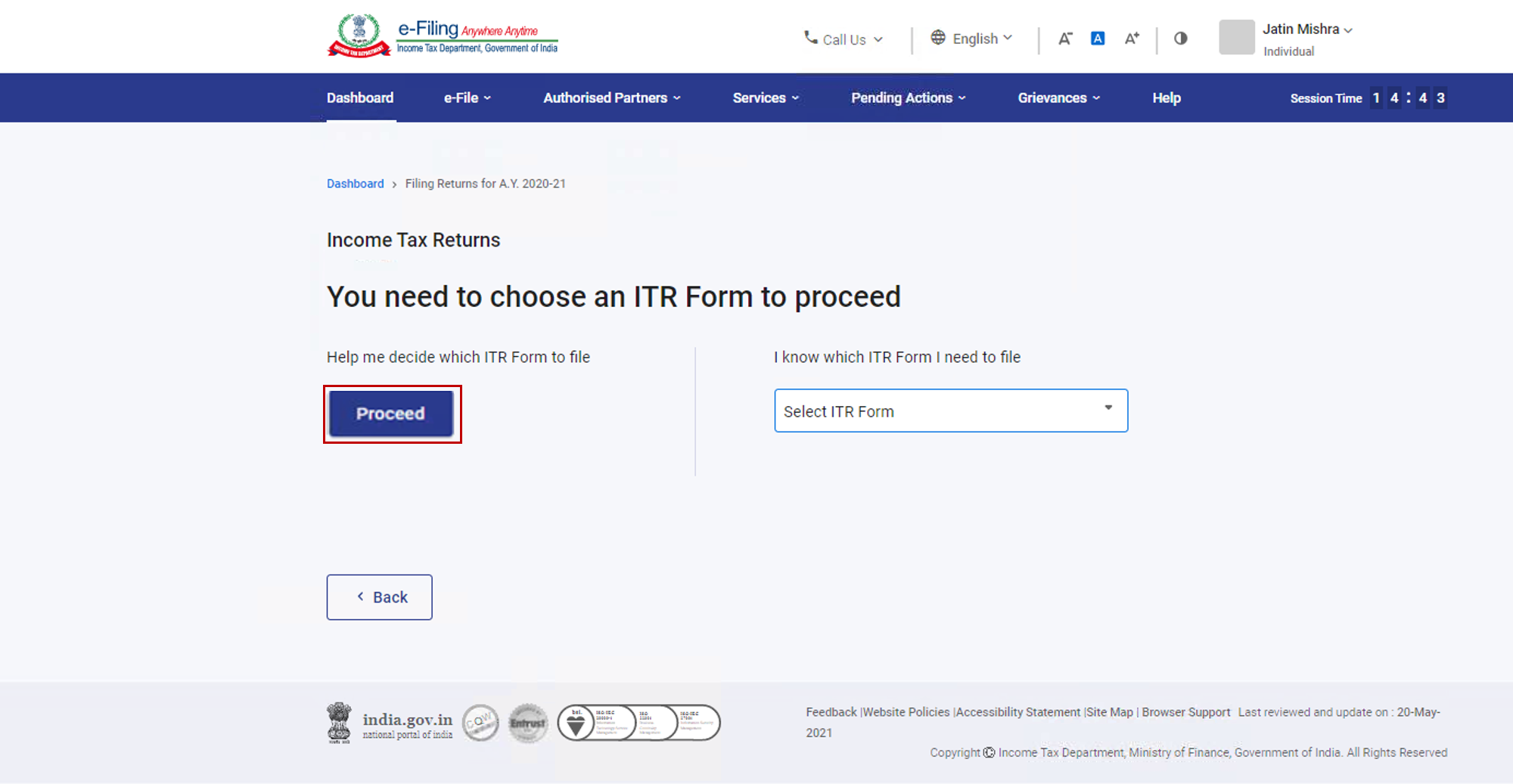
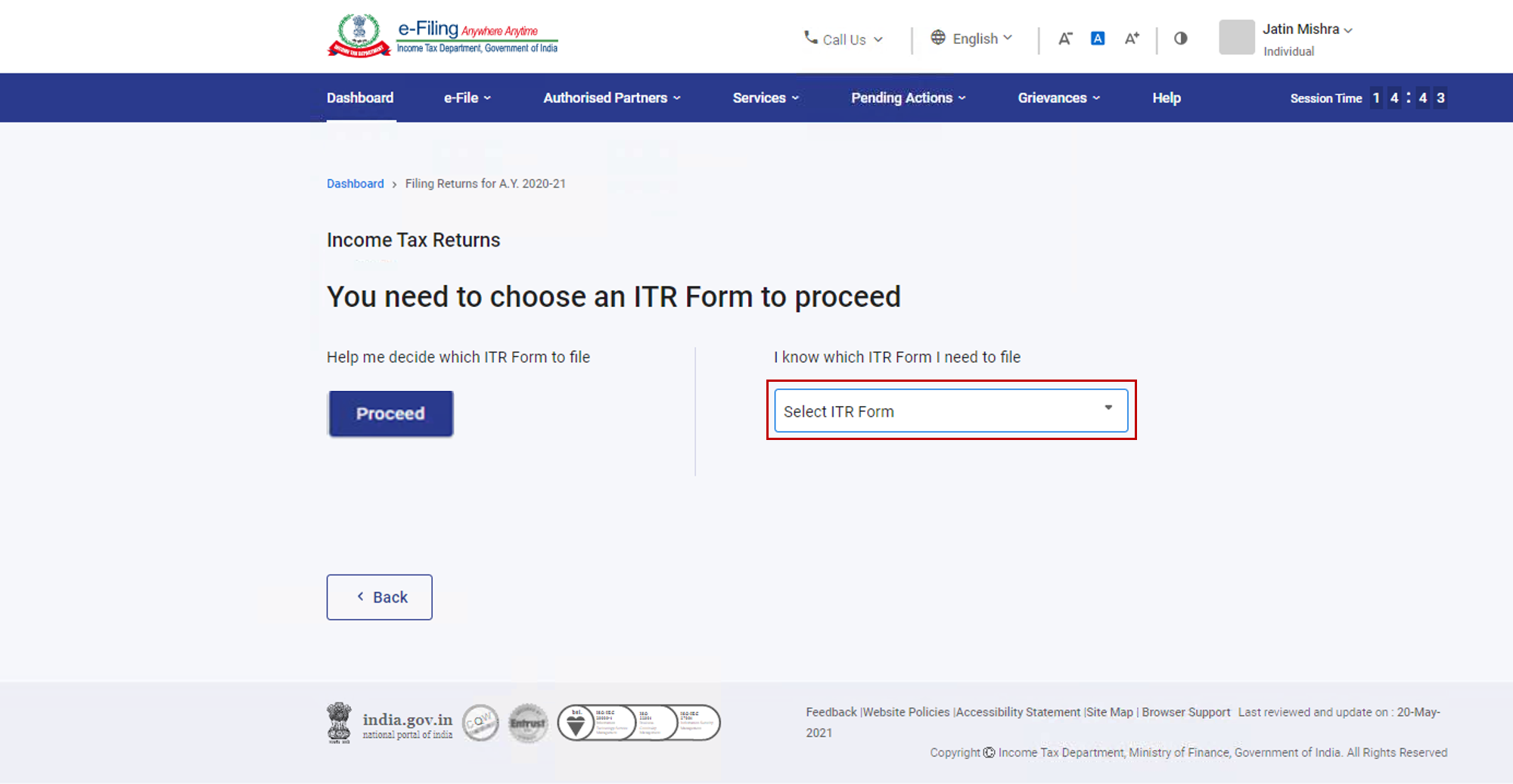
Step 6: You have two options to select the type of Income Tax Return:

  • If you are not sure which ITR to file, you may select Help me decide which ITR Form to file and click Proceed. Once the system helps you determine the correct ITR, you can proceed with filing your ITR.
     
  • If you are sure which ITR to file, select I know which ITR Form I need to file. Select the applicable Income Tax Return from the dropdown and click Proceed with ITR.


Note: 

  • In case you are not aware which ITR or schedules are applicable to you or income and deductions details, your answers in response to a set of questions will guide in determining the same and help you in correct / error free filing of ITR.
  • In case you are aware of the ITR or schedules applicable to you or income and deduction details, you can skip these questions.

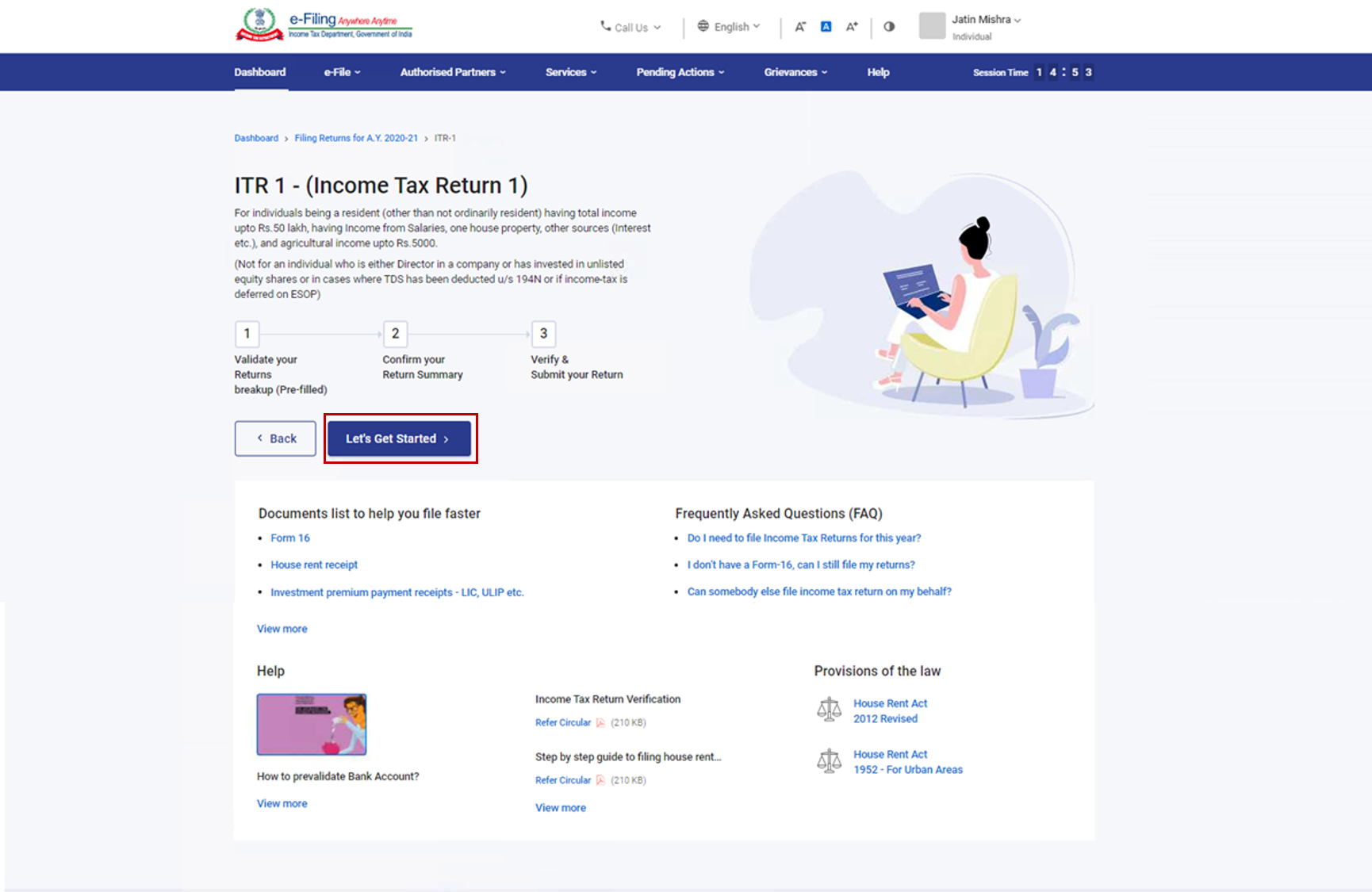
Step 7: Once you have selected the ITR applicable to you, note the list of documents needed and click Let’s Get Started.


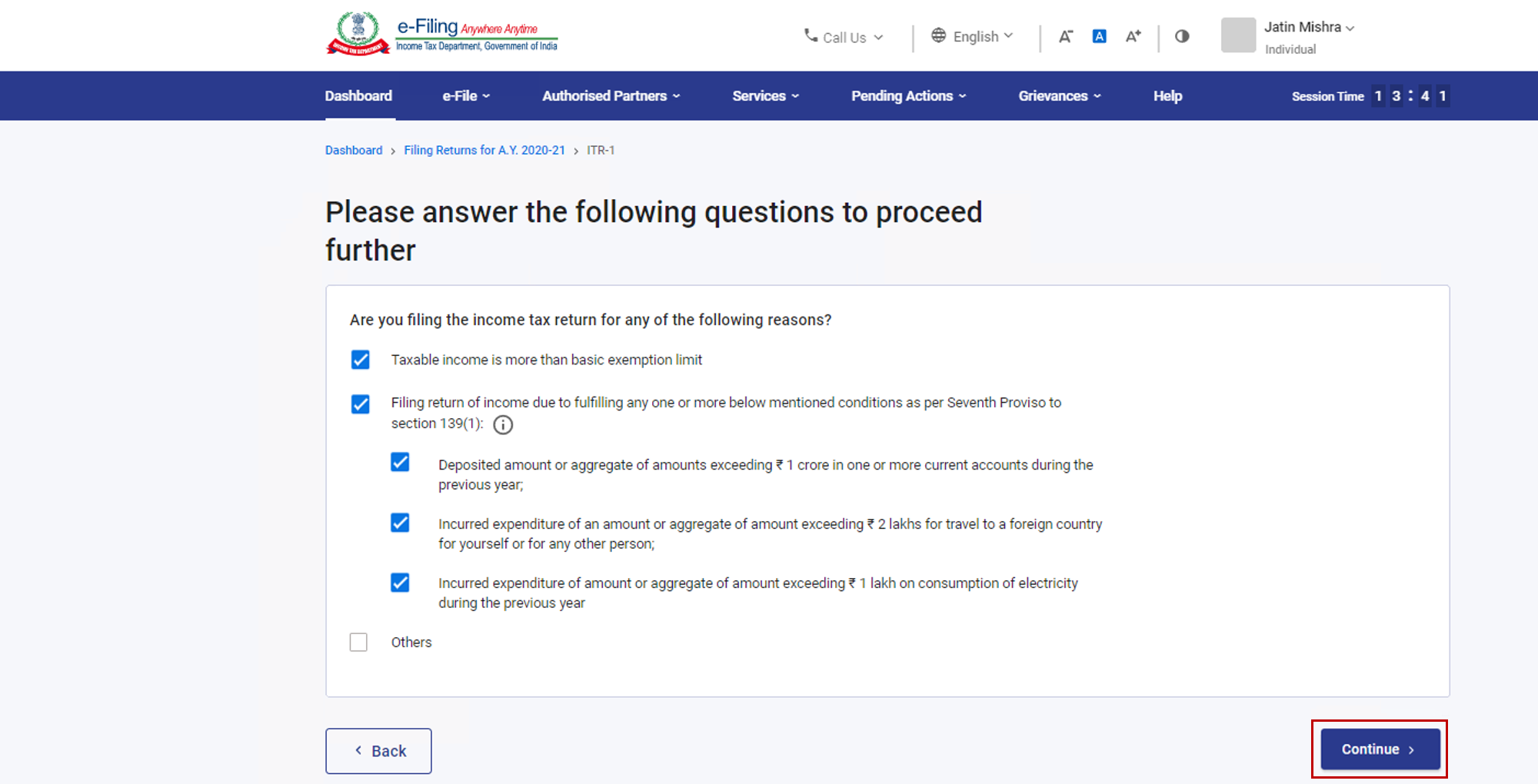
Step 8: Select the checkboxes applicable to you and click Continue.


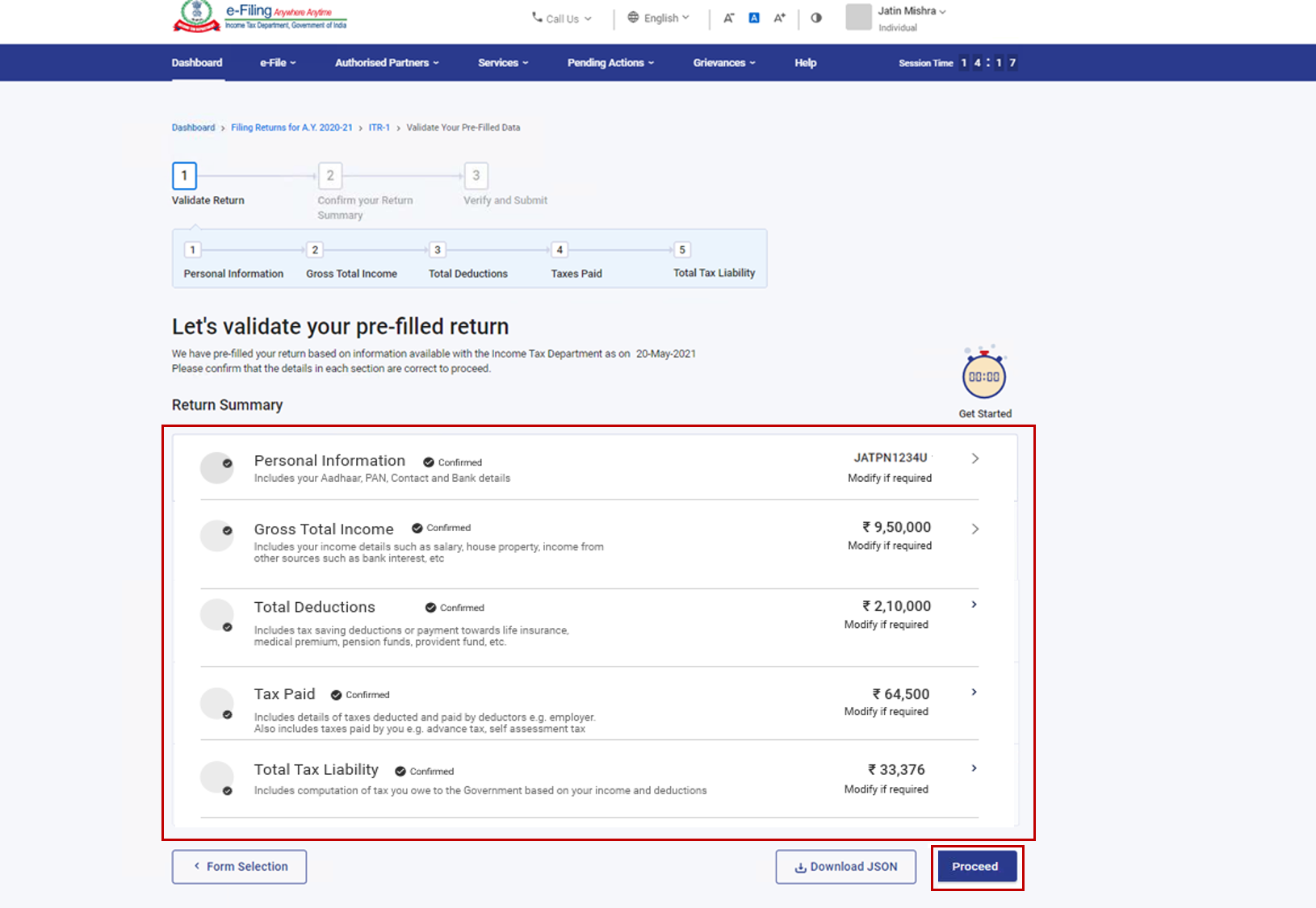
Step 9: Review your pre-filled data and edit it if necessary. Enter the remaining / additional data (if required). Click Confirm at the end of each section.


Step 10: Enter your income and deduction details in the different section. After completing and confirming all the sections of the form, click Proceed.


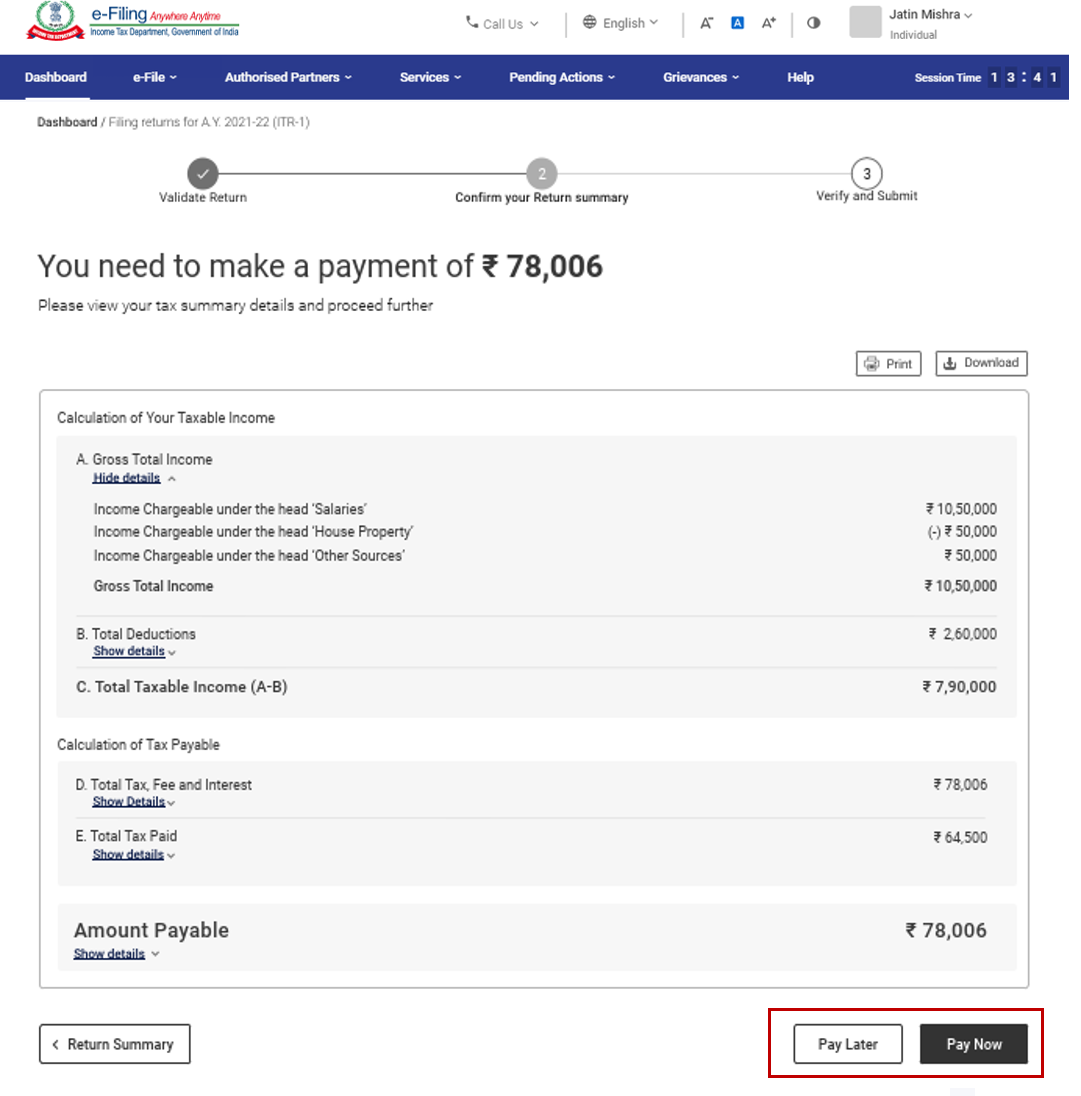
Step 10a: In case there is a tax liability
You will be shown a summary of your tax computation based on the details provided by you. If there is tax liability payable based on the computation, you get the Pay Now and Pay Later options at the bottom of the page.


Note:

  • It is recommended to use the Pay Now option. Carefully note the BSR Code and Challan Serial Number and enter them in the details of payment.
  • If you opt to Pay Later, you can make the payment after filing your Income Tax Return, but there is a risk of being considered as an assessee in default, and liability to pay interest on tax payable may arise.
     

Step 10b: In case there is no tax liability (No Demand / No Refund) or if you are eligible for a Refund

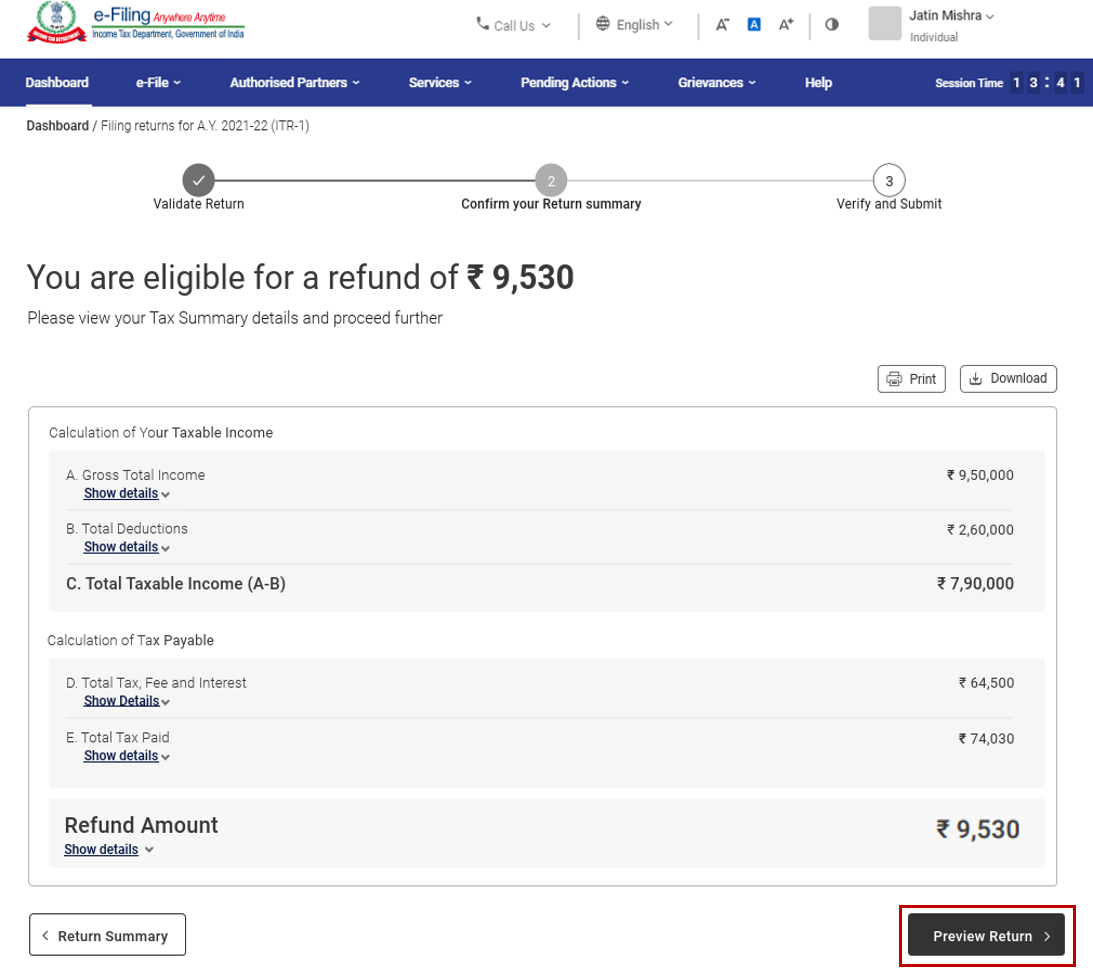
After paying tax, click Preview Return. If there is no tax liability payable, or if there is a refund based on tax computation, you will be taken to the Preview and Submit Your Return page.


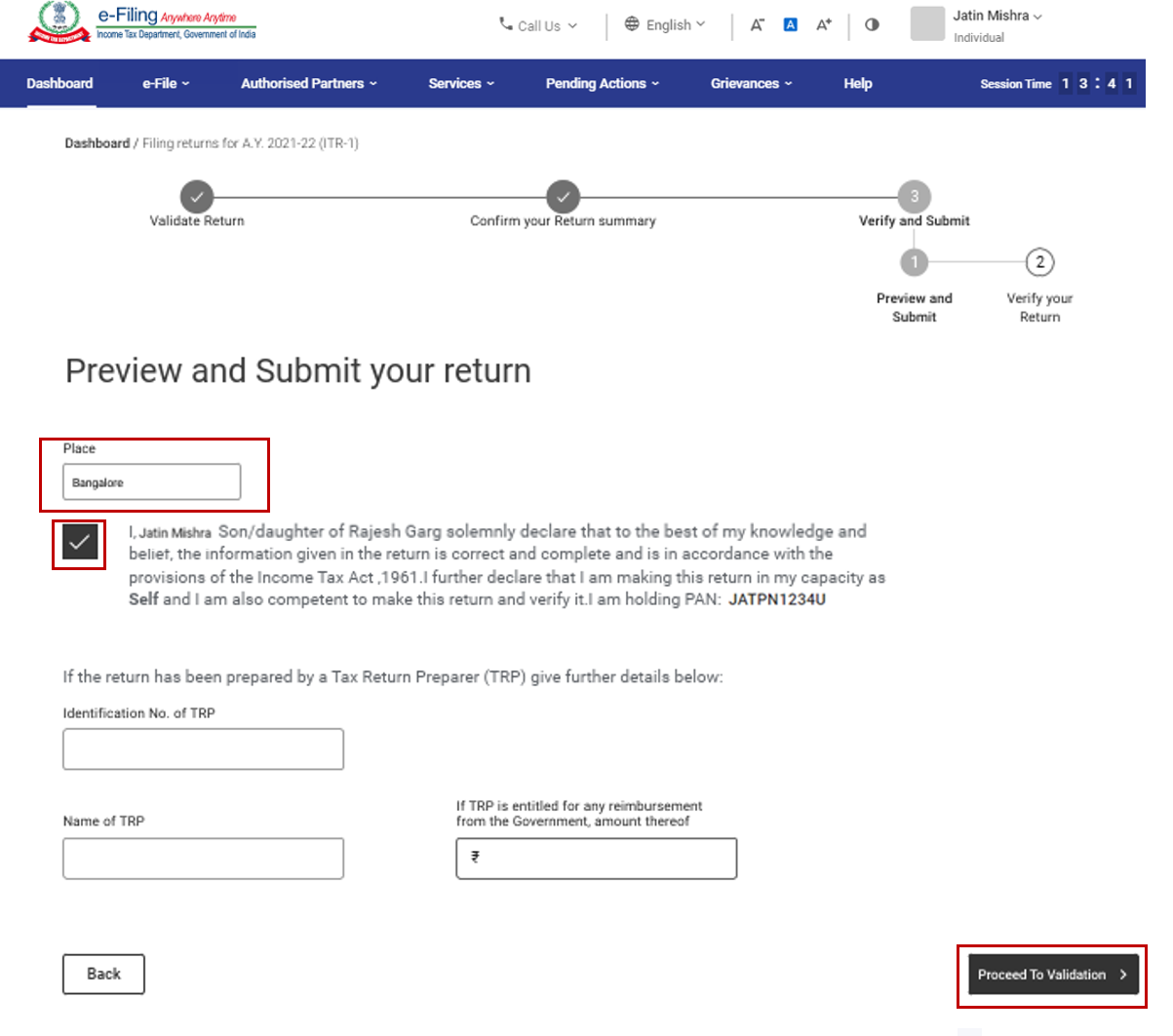
Step 11: On the Preview and Submit Your Return page, enter Place, select the declaration checkbox and click Proceed to Validation.


Note: If you have not involved a tax return preparer or TRP in preparing your return, you can leave the textboxes related to TRP blank.


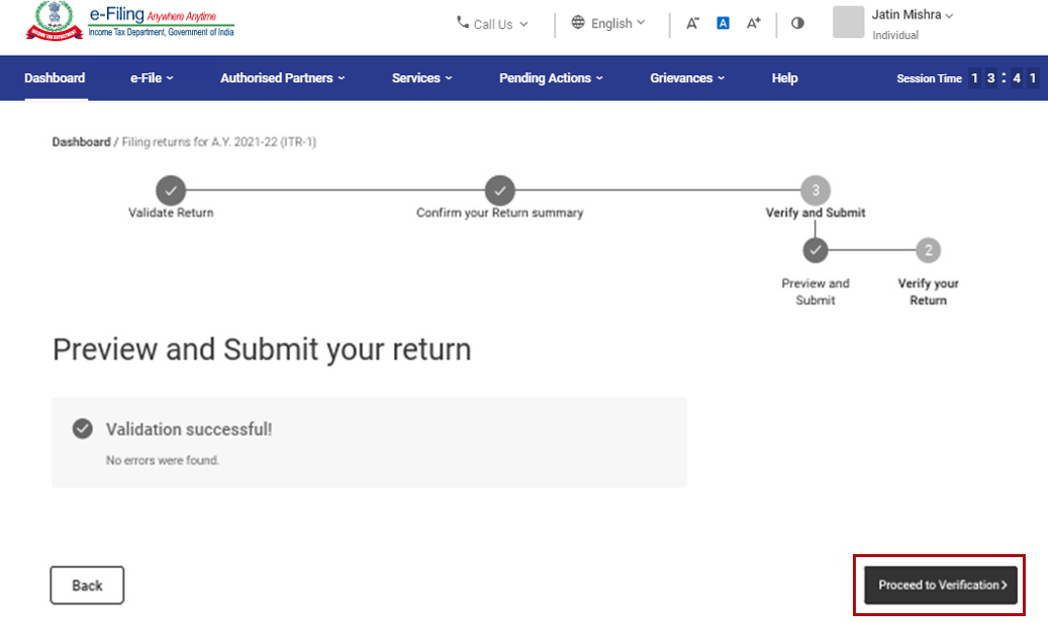
Step 12: Once validated, on your Preview and Submit your Return page, click Proceed to Verification.


Note: If you are shown a list of errors in your return, you need to go back to the form to correct the errors. If there are no errors, you can proceed to e-Verify your return by clicking Proceed to Verification.


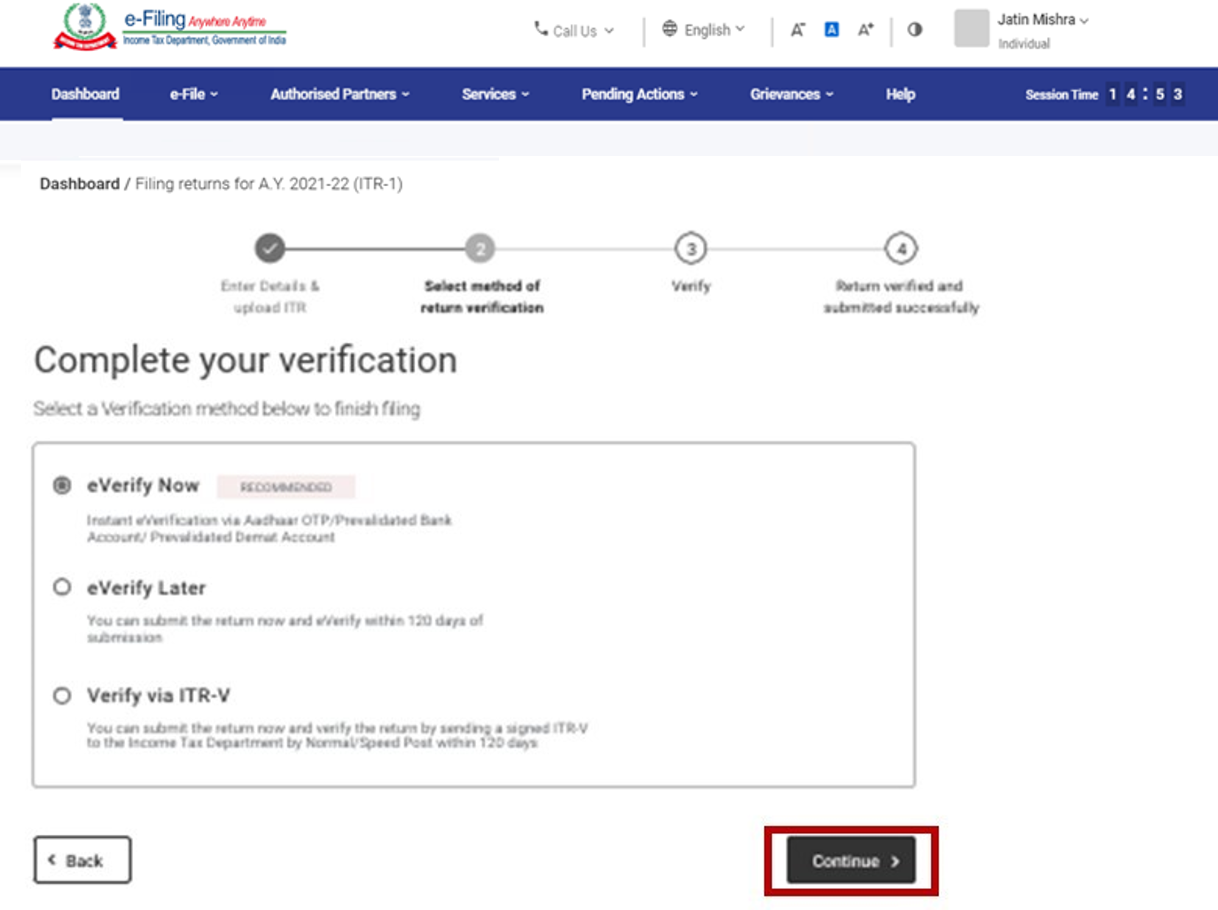
Step 13: On the Complete your Verification page, select your preferred option and click Continue. 
 

Step 12


It is mandatory to verify your return, and e-Verification (recommended option - e-Verify Now) is the easiest way to verify your ITR – it is quick, paperless, and safer than sending a signed physical ITR-V to CPC by post. 


Note: In case you select e-Verify Later, you can submit your return, however, you will be required to verify your return within 120 days of filing of your ITR.


Step 14: On the e-Verify page, select the option through which you want to e-Verify the return and click Continue

Note:

  • Refer to the How to e-Verify user manual to learn more.
  • If you select Verify via ITR-V, you need to send a signed physical copy of your ITR-V to Centralized Processing Center, Income Tax Department, Bengaluru 560500 by normal / speed post within 120 days.
  • Please make sure you have pre-validated your bank account so that any refunds due maybe credited to your bank account.
  • Refer to the My Bank Account user manual to learn more.

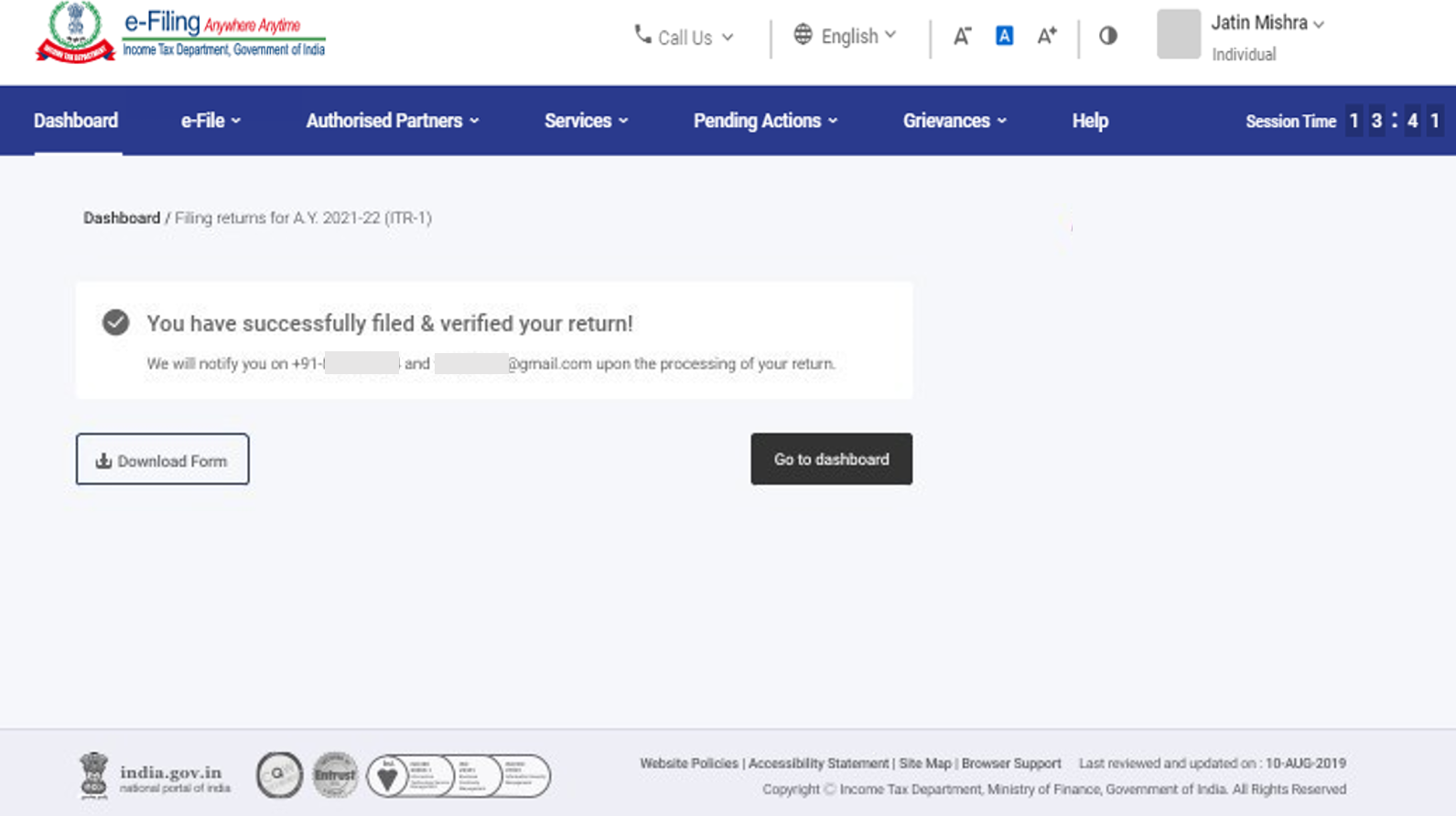
Once you e-Verify your return,  a success message is displayed along with the Transaction ID and Acknowledgment Number. You will also receive a confirmation message on your mobile number and email ID registered on the e-Filing portal. 
 

4. Related Topics
 

Important:-For better result always use google cromeNote:-Please Always Check and Conform Above Details with The Official Website and Advertisement / Notification.